R Projects and R Scripts
EE BIOL C177/C234
Today’s Menu 🎯
- R Project: one home folder per analysis
- R script: write, save, and rerun your code
- Working directory & paths: how R finds your files, with
here - Start fresh: restart R, rerun from the top
Setup 📦
Packages for this chapter
We’ll be relying on tidyverse, palmerpenguins, and here. If you haven’t installed them yet, run this in your R Console (not in your script):
Your Workspace
Three Things, Easy to Mix Up
| What it is | What you see | What you do with it | |
|---|---|---|---|
| R Project | The “home” folder of one analysis | eeb_c234.Rproj |
Double-click to open your work. No code in it! |
| R script | A text file of R code | 07_workspace.R |
Write code, save, run line by line |
| Console | Where R runs code right now | The > prompt |
Quick tests. Nothing is saved. |
🧪 Project = your lab bench · Script = your written protocol · Console = scratch paper
Console or Script?
📝 Script: anything needed to reproduce a result
library(tidyverse)- reading data
- every transformation
- every plot
🗒️ Console: one-time or throwaway
pak::pak("palmerpenguins")(install once per computer)?filter(help pages)glimpse(penguins)(a quick peek)
If you closed RStudio right now, could you redo your analysis? Only if it’s in the script.
Create Your Course Project (once)
- File > New Project… > New Directory > New Project
- Directory name:
eeb_c234(no spaces), inside e.g.Documents- Not in
Downloads, not inside another project
- Not in
- Click Create Project: RStudio restarts
- ✅ Check: top-right corner says eeb_c234, not Project: (None)
- Files pane → New Folder:
data, thenfigures
Using Positron?
No .Rproj needed: File > Open Folder… and pick the project folder.
Your Project Folder
eeb_c234/                 <- the project folder
├── eeb_c234.Rproj        <- double-click this to open the project
├── 07_workspace.R        <- your script for this chapter
├── data/                 <- raw data files go here
└── figures/              <- saved plots go here
One project for the whole course. For research: one project per paper or analysis.
⚠️ Always Open the .Rproj File
Double-click eeb_c234.Rproj every time
(or File > Open Project…, or the project menu in the top-right corner)
- ❌ Double-clicking a
.Rfile opens RStudio without the project → R looks for files in the wrong folder - 👀 Top-right says Project: (None)? You’re not in your project
- 🪟 Windows hides file extensions: look for type R Project (blue cube icon)
Create & Save a Script
- File > New File > R Script (
Ctrl/Cmd + Shift + N) - Save right away (
Ctrl/Cmd + S) as07_workspace.Rin the project folder - Red tab title with
*= unsaved changes. Save often!
File names: no spaces, lowercase, numbered so they sort in order
✅ 07_workspace.R ❌ My Script FINAL (2).R
Anatomy of a Script
#= comment: R ignores it; it’s a note to future you# Name ----= section: jump around with the outline (Ctrl/Cmd + Shift + O)- Read top to bottom: packages first, then data, then analysis
Running Code
| Action | Windows / Linux | Mac |
|---|---|---|
| Run current line / selection | Ctrl + Enter |
Cmd + Return |
| Run the whole script | Ctrl + Shift + Enter |
Cmd + Shift + Return |
| Save | Ctrl + S |
Cmd + S |
| Restart R | Ctrl + Shift + F10 |
Cmd + Shift + 0 |
- 💾 Saving ≠ running. Edited code does nothing until you run it
- 🔗 Cursor anywhere in a pipe → runs the whole pipe
- 📺 Output appears in the Console; plots in the Plots pane, never in the script
- ➕ A
+in the Console = R is waiting for you to finish (missing),", or a trailing|>). PressEsc
Working Directory & Paths
Working directory = where R looks for files. With the project open, it’s the project folder.
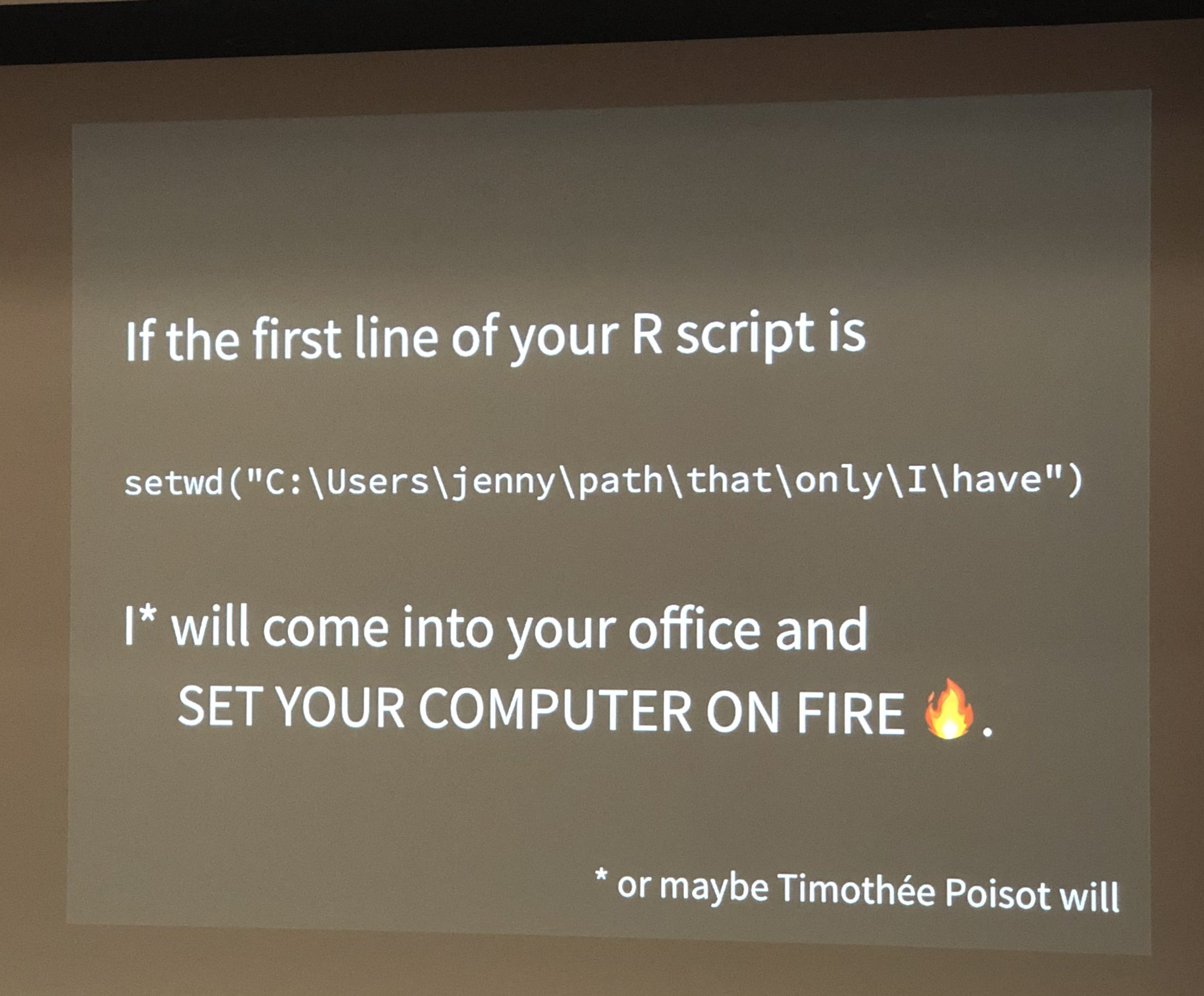
- 🚫 Never
setwd()in a script: open the project instead - ↗️ Use forward slashes
/, even on Windows ("data\x.csv"is an error) - 🔤 Spelling and capitalization must match:
Data/≠data/ - 🔍 Lost?
list.files("data")shows what R can see
The here Package
here::here(): Paths from the Project Root
- 🏠 Always starts at the folder with the
.Rprojfile - ✂️ One argument per folder: no slashes to get wrong
- 📄 Works the same in an
.Rscript and in a.qmdin a subfolder
Start Fresh Every Time
Once: Tools > Global Options… > General
- Set Save workspace to .RData on exit → Never
Every time before you share or submit:
- Restart R (
Ctrl + Shift + F10/Cmd + Shift + 0) - Run the whole script (
Ctrl/Cmd + Shift + Enter)
No errors? Then anyone with your project folder can reproduce your results.
Your script, not your R session, is the record of your work.
When Things Go Wrong
| What you see | Likely cause | Fix |
|---|---|---|
'data/x.csv' does not exist in current working directory |
Project not open, file not in data/, or a typo |
Check the top-right corner; getwd(); list.files("data") |
could not find function "ggplot" |
Package not loaded (restarting R unloads everything) | Run the library() lines at the top |
object 'my_data' not found |
That line wasn’t run this session, or was only typed in the Console | Run the script from the top |
Console shows + and nothing happens |
Missing ) or ", or a trailing |> |
Esc, fix, run again |
| Edited the script, output didn’t change | Saving is not running | Run the line again |
| Your files aren’t in the Files pane | RStudio opened from its icon or a .R file |
Open eeb_c234.Rproj |
Your Turn! 🏋️ Set Up Your Project
- Create the R Project
eeb_c234 - Create folders
dataandfigures - Turn off
.RDatasaving/restoring - New script → save as
07_workspace.R→ add a header, thelibrary()lines, and a first plot - Run
getwd()in the Console - Restart R, then run the whole script
- Close RStudio; reopen by double-clicking
eeb_c234.Rproj
✅ Top-right shows eeb_c234 · getwd() ends in eeb_c234 · packages load without errors (“Attaching packages” / “Conflicts” messages are normal)
From now on: every chapter gets its own script in this project (08_dplyr.R next).
Your Workspace