Basics of R and RStudio
EE BIOL C177/C234
Today’s Menu 🎯
- Getting set up with R and RStudio
- First steps with basic R syntax
- Using AI as your coding assistant
- Managing and installing packages
- Meeting the tidyverse 🌍
Getting Set Up
Installing R and RStudio
Follow this installation guide to get started.
You need two things:
- R — the engine 🏎️
- RStudio — the dashboard 🖥️
Why RStudio?
R alone = powerful but clunky
RStudio = a sleek interface that makes everything easier
- Write & organize code
- Visualize results instantly
- Manage files and packages
For this course, RStudio is our primary IDE.
Other IDEs Worth Knowing
- VS Code 🔗 code.visualstudio.com
- General-purpose, huge extension ecosystem
- Best AI integration (Copilot, Cursor, etc.)
- Positron 🔗 positron.posit.co
- Built by the same team behind RStudio
- A bit in-between — not as R-native as RStudio, not as AI-integrated as VS Code
- Antigravity 🔗 antigravity.google
- A new IDE from Google (a customized version of VS Code)
- Native AI integration with Gemini and Claude
- We will use it for agentic AI tasks towards the end of the course
- All three are fine for this course, but RStudio is our default
Making Your Code Prettier
Two quick wins:
- Fira Code font — ligatures make
<-,|>,!=beautiful stylerpackage — auto-format to tidyverse style (link)
First Steps in R
Hello, World! 👋
The classic first program:
R as a calculator:
Storing Results in Variables
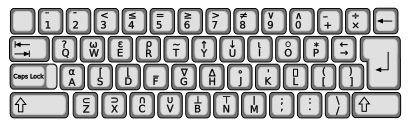
Why <- instead of =?
<-is for assignment (“put this value in that box”)=is for function arguments (mean(x = c(1,2,3)))- Historical: early stats keyboards had a dedicated
←key!
Exercise
Create y = 5 × 3, then z = y / 2:
Using AI 🤖
AI as Your R Assistant
Don’t memorize every function — let AI help!
- GitHub Copilot works in RStudio (setup guide)
But always verify AI suggestions:
Installing Packages 📦
Standard Approach
Install once, load every session:
Quirk Alert 🤔
install.packages("ggplot2") — quotes
library(ggplot2) — no quotes
Yes, it’s inconsistent. Welcome to R.
pak Method (Recommended) ⭐
# install.packages("pak")    # one-time setup
pak::pak("ggplot2")           # from CRAN
pak::pak("cttobin/ggthemr")   # from GitHub
pak::pak(c("dplyr", "tidyr")) # multiple at once
Why pak?
- ✅ Skips already-installed packages
- ✅ Works with CRAN, GitHub, Bioconductor
- ✅ Clear dependency reporting
We’ll use pak throughout this course.
The :: Operator
pak::pak() means: “use the pak function from the pak package”
This lets you call a function without loading the whole package — avoiding name conflicts (a huge source of hidden bugs!).
The Tidyverse 🌍
Meet the Tidyverse
The tidyverse is an opinionated collection of R packages designed for data science.
What’s Inside?
Nine packages loaded at once:
| Package | Purpose |
|---|---|
ggplot2 |
Data visualization |
dplyr |
Data manipulation |
tidyr |
Data tidying |
readr |
Reading data |
purrr |
Functional programming |
tibble |
Modern data frames |
stringr |
String manipulation |
forcats |
Factor handling |
lubridate |
Date/time handling |
Handling Conflicts ⚠️
The filter and lag conflicts can cause silent bugs:
library(conflicted)
library(tidyverse)
conflict_prefer("filter", "dplyr")
conflict_prefer("lag", "dplyr")
Or use the explicit package::function() syntax:
Want to avoid the annoying messages?
You can use the suppressPackageStartupMessages() function to hide the start-up output when loading packages:
Summary
What We Learned Today
- ✅ Install R + RStudio (or Positron)
- ✅ R basics:
print(), arithmetic,<- - ✅ AI tools +
?for help - ✅ Install packages with
pak - ✅ Load the tidyverse
Next up: Data structures — vectors and tibbles! 🐧
Basics of R and RStudio